00 Set up a workspace and make a first page
Before you begin: None beyond creating, saving, and finding files.
By the end: Create an HTML file, open it in a browser, edit it, and explain the save–refresh loop.
A page begins as a file
Imagine that a neighbor hands you a sheet announcing a garden morning. The words are the content. “Garden morning” is a heading because it names the announcement; a list of things to bring is a list because the items belong together. HTML lets us record those relationships in a text file. A browser reads that file and turns it into a page people can navigate. CSS will later describe how the page looks. Neither language requires an account, a framework, or a build command for this project.
Our project is Harbor Together, a fictional community events site. We will first make it understandable, then add presentation, then check it at different sizes. The final design is a reference, not a picture you must reproduce exactly. The skill is explaining why a choice helps a visitor find and use information.
Choose two tools with different jobs
You need a plain-text or code editor and a current browser. Your editor changes the source file; your browser displays the saved result. An existing code editor is fine. If you need one, obtain Visual Studio Code from its official site, linked in the source register. No extensions are needed. A word processor is the wrong tool: it may save a formatted document rather than the literal characters the browser expects. If using a basic editor, choose plain text and UTF-8. On macOS TextEdit, switch to plain text before saving. Operating-system menus may vary.
Extract this ZIP before opening its pages. Keep the full folder together so that the lesson links and images work. Open the course’s index.html in a browser to read; open your project’s index.html in the editor to write. Those are different files with the same conventional name. Create a separate folder named harbor-work somewhere you can find easily, such as Documents. Do not work inside the ZIP preview.
- In the editor, open the harbor-work folder and create a file named index.html.
- Check that its real filename ends in .html, not .html.txt. Show file extensions in your file manager if necessary.
- Type the example below and save it as UTF-8.
- Use your browser’s Open File command or drag index.html into the browser. You should see one large heading and a sentence.
<!doctype html>
<html lang="en">
<head>
  <meta charset="utf-8">
  <meta name="viewport" content="width=device-width, initial-scale=1">
  <title>Harbor Together | Community events</title>
</head>
<body>
  <h1>Harbor Together</h1>
  <p>Small events. Good company.</p>
</body>
</html>
Read the small pieces before changing them
An element commonly has an opening tag, content, and a closing tag: in <p>Small events.</p>, p identifies a paragraph. The slash marks the closing tag. The html element wraps the document and its lang attribute says the content is English. An attribute adds information in the opening tag; quotes keep its value together. The head holds information about the page, including the browser-tab title. The body holds what people read. The doctype asks for modern standards rendering. The charset tells the browser how to interpret characters such as é. The viewport line helps narrow screens use their own width. You do not need to memorize these lines today; keep the starter intact while you learn what changes.
Notice the indentation. It makes the nesting visible to you; it does not create the layout. A paragraph inside body starts farther to the right in the source, yet the browser is free to render it according to its own defaults. Ordinary extra spaces and line breaks in HTML text usually collapse. To create a second paragraph, create a second p element rather than repeatedly pressing Enter in the editor.
Make one visible change
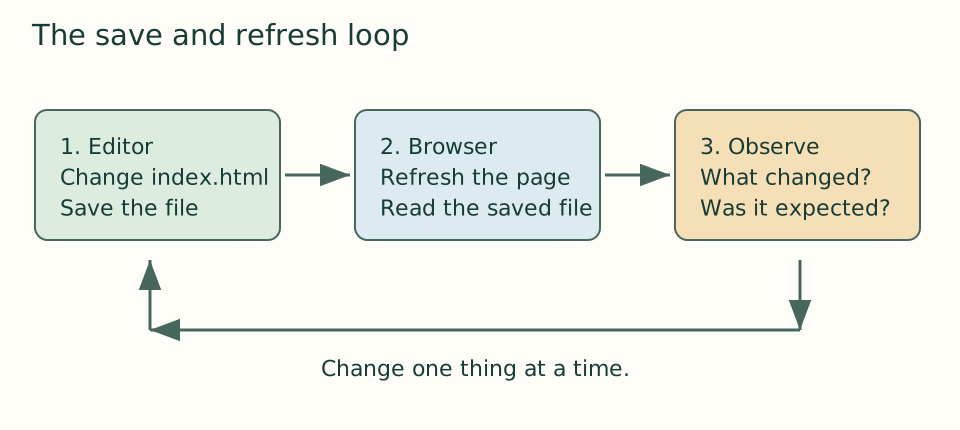
Replace the sentence with “Find a local activity and meet your neighbors.” Save, then reload the browser. The new sentence is your evidence that you edited the right file. Now change only the title text. It changes the tab, not the heading. This contrast helps you distinguish head from body. If nothing changes, check for an unsaved dot on the editor tab, confirm the file path in the browser, and reload. If the browser shows the literal tags, check the file extension and whether the editor saved plain text.
We will use this loop throughout: predict a change, make a small edit, save, refresh, and compare the result with the prediction. A mistake is useful when it isolates one cause. Keep a short learning log with the prediction, observation, and fix rather than a list of copied answers.
Where a local server fits
Opening a file gives a file: address. This course’s static HTML and CSS work that way. An http: address means the browser is requesting resources from a server. Later lessons explain a local server for closer-to-hosting checks; you do not need to install Python or npm to begin. A local file is not a publicly published website, and opening it does not make it available to other people.
Checkpoint: close and reopen your page from its folder. Explain aloud which application edits it and which application displays it. Compare your result with version 00 only after you have run your own file.
Open the checkpoint source
The runnable-version link shows the result. To inspect or copy its source, use your editor’s Open Folder or Open File command and choose versions/00/index.html inside the extracted course folder. From module 04 onward, also open that version’s styles.css. Keep your own harbor-work folder separate. Compare a small section, then type or transfer it into the corresponding place in your own files; opening a reference does not update your project automatically.
Your next step
Attempt the three practice tasks, then use the separate explained solutions to compare reasoning. Open this module’s runnable version. Technical references are listed in the dated source register.