
JavaScript · Module 6
Connect data to the page with DOM events
The page has a live representation
The browser turns HTML into a tree of objects called the DOM. JavaScript can read and change that tree. Editing the DOM changes the current page display; it does not rewrite your saved HTML source. Reloading reconstructs the page from its files. This explains why a change made in Developer Tools can disappear after a reload.
document.querySelector("#event-list") returns the first element matching the CSS selector, or null if none matches. A reference to that element lets us call methods or change properties. Be precise about the selector and wait until the HTML exists. Our external scripts use defer or module loading to avoid querying before the document is parsed.
Build one card from one record
Use a small rendering function. Its job is to turn data into DOM nodes, not to decide which events qualify for the result list.
function makeCard(event) {
  const article = document.createElement("article");
  article.className = "event-card";
  const heading = document.createElement("h3");
  heading.textContent = event.title;
  article.append(heading);
  return article;
}
Trace a call with the garden record. An article element is created but is not yet on the page. A heading element is created. Assigning textContent makes the title literal text. Appending the heading makes it a child of the article. Returning the article gives the caller a complete node to place in the result container. The caller can clear old results with replaceChildren() and append each new card.
Do not insert a fetched title or user input through unsanitized innerHTML. That API interprets a string as markup. Text that contains angle brackets could become elements instead of a harmless label. textContent renders a title as text, even if it looks like HTML. This is a safe choice for text insertion, not a universal security shield: untrusted URLs and other attributes need their own rules. Our fixtures provide no external links to construct from user data.
Listen now, respond later
An event is a notification about something that happened, such as a click, a changed selection or typed input. A listener registers a callback for a type of event.
const category = document.querySelector("#category");
category.addEventListener("change", function () {
  const selected = category.value;
  const visible = events.filter((event) => {
    return selected === "all" || event.category === selected;
  });
  renderEvents(visible);
});
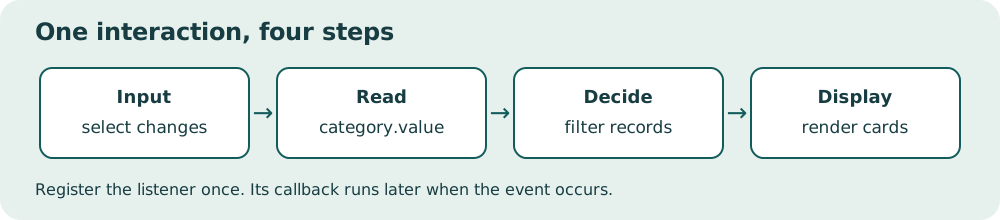
When this code first runs, it registers the function. It does not immediately execute the callback body. Later, changing the select causes the browser to call it. The callback reads the current field value, filters the data and asks a rendering function to show the result. Do not write addEventListener("change", renderEvents(events)); that would run rendering immediately and pass its return value rather than a callback.
Read the diagram explanation
Register the listener once. Its callback runs later when the event occurs.
Use input for a text search that should respond as typing occurs. Use change when a committed selection is enough. Do not register another listener inside every render unless you have a clear reason; repeated registration can make one action trigger several responses. In our simple design, controls get listeners once and rendered save buttons each get one listener when created.
Interaction includes the keyboard
Use a real button for a button action and a labeled select for categories. Native controls already support common keyboard interaction. A clickable div requires extra keyboard and semantic work, so it is a poor default here. Keep visible focus styling. A result-count paragraph with role="status" can politely announce changed results to assistive technology without moving focus away from the search field. Actual screen-reader behavior still needs testing.
Filtering should not forcibly move focus into the results each time someone types. If a save button changes its state, keep the same button node and stable label, then update aria-pressed and separate status text. Replacing the entire list on every save could destroy the focused button. Rendering is not just drawing pixels; it also affects where the user's interaction currently is.
Observe the full cycle
Run version 06 — download the course ZIP (Extract it and follow the included setup instructions for examples/06/index.html.). Change the category with the keyboard, check the count and then try a title containing markup-like text by editing the fixture in the script. The title should appear literally. Inspect the DOM and confirm there is no new image or script node. When the count is zero, show an explicit empty-state message. An unexplained blank area is harder to understand than “No matching events.”
References: textContent, event listeners, status semantics, WAI toggle-button guidance.
Practice and next step
Open exercise 06. Attempt the prediction before running code. Record the observed result and explain any mismatch. The explained solution is separate so you can choose when to look.
Read the separate answers and explanations
Reading progress
10 lessons remain open to guests. Marking a lesson read records reading only; it does not award assessment credit or a certificate.
Device reading marks require browser storage. Reading is always available.
Sign in or create an account to save separate account progress. Your current page is kept.
Your earlier place on this device suggests these lessons. No new lesson is marked read.