
Stage 1 · L02
Set up, start, inspect and stop the first application
Core · original Session 1 plus essential local Git/Docker setup
Create a working copy of the starter before editing it. Python 3.13 and a virtual environment keep this course's packages separate from other projects. Activate the environment before installing the pinned requirements.lock; use python -m pip and python -m uvicorn so the selected interpreter also owns installation and serving. Never install these packages into the website's Django environment.
From the directory containing equipment/, run python -m uvicorn equipment.api:app --host 127.0.0.1 --port 8000. The import string means import the equipment.api module, then obtain its app object. A wrong working directory produces ModuleNotFoundError before any HTTP request can be handled. A port already in use is a server binding error, not a FastAPI 404. Stop the process with Ctrl-C before trying another server on that port.
Open /docs to inspect generated operations, then issue curl -i http://127.0.0.1:8000/health. The lifespan startup sets ready=True; its finally block resets that flag at shutdown. TestClient is used as a context manager so tests run startup and shutdown. Calling an ASGI transport directly does not automatically prove lifespan behavior. The baseline separately starts Uvicorn and reads a real loopback TCP response.
Prepare the isolated runner explicitly with --prepare. It pulls PostgreSQL and freshly builds the pinned Python base plus the complete shared 39-package lock. Normal checks require a matching requirements-hash label and use --pull never. Both fresh Linux ARM64 image preparation and native Mac Python3.13 installation passed; Windows has not been run. The browser lab supports early in-process ASGI requests but cannot start a TCP socket, Git, Docker or PostgreSQL.
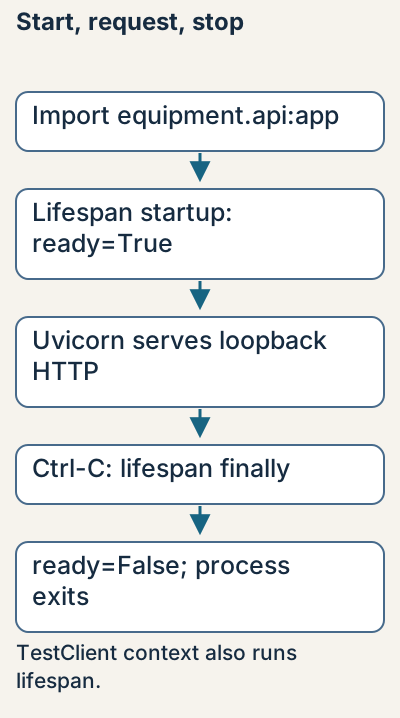
Follow the running code
Focused lesson example; see the end-of-stage capstone for the cumulative app · stage 01
python3.13 -m venv .venv
source .venv/bin/activate
python -m pip install -r requirements.lock
python -m uvicorn equipment.api:app --host 127.0.0.1 --port 8000
# In a second terminal:
curl -i http://127.0.0.1:8000/health
Predict and observe this focused example using the concepts explained above. Its boundary is stated in the focused answer.
Guided lab
- Read the explanation and predict the focused example’s outcome.
- Start and stop your owned server. Compare a connection failure, a running-server 404 and a successful /health response.
- Compare the observed outcome with the focused answer and state its boundary.
Expected: Before startup, curl cannot connect and receives no HTTP status. With Uvicorn running, /health is 200 with ready=true and /missing is 404. Ctrl-C runs lifespan cleanup. The module import starts from the directory containing equipment/.
- Wrong module directory → import failure; occupied port → bind failure; stopped server → connection failure, not an HTTP status.
Focused exercise and answer
Complete this focused exercise before reading its answer. The full native transfer is introduced only at the end of the stage.
Your transfer task: Start and stop your owned server. Compare a connection failure, a running-server 404 and a successful /health response.
- Start and stop your owned server. Compare a connection failure, a running-server 404 and a successful /health response.
Inspect the matching answer
This answer addresses the focused exercise above; the cumulative implementation is shown only after the stage prerequisites.
Before startup, curl cannot connect and receives no HTTP status. With Uvicorn running, /health is 200 with ready=true and /missing is 404. Ctrl-C runs lifespan cleanup. The module import starts from the directory containing equipment/.Check your reasoning
Why use a context manager around TestClient?
Show the explanation
It enters and exits application lifespan. A request-only client does not establish startup and cleanup.
Reading progress
54 lessons remain open to guests. Marking a lesson read records reading only; it does not award assessment credit or a certificate.
Device reading marks require browser storage. Reading is always available.
Sign in or create an account to save separate account progress. Your current page is kept.
Your earlier place on this device suggests these lessons. No new lesson is marked read.