
React/TypeScript · Module 6
Build an honest accessible practice form
Separate the interaction from the promise
A form can demonstrate validation without registering anyone. Harbor Together uses synthetic details and a clearly labeled practice confirmation. It never sends an email, reserves a place or stores a person's contact details. Honest wording is part of correctness: a visually polished success message is harmful if it suggests an action that did not happen.
This lesson connects fields to state, handles typed browser events, and checks error feedback and keyboard behavior. Use the exact fictional participant name Sample learner and choose one to four practice places. Do not enter real personal information just because an example runs locally.
Decide who owns the field value
A controlled input receives its current value from React state and reports changes through an event handler. The state and the visible field should agree. Initialize a text field with an empty string rather than undefined so it does not switch between uncontrolled and controlled modes.
const [name, setName] = useState('');

<label htmlFor="demo-name">Practice name</label>
<input
  id="demo-name"
  value={name}
  onChange={(event) => setName(event.currentTarget.value)}
  required
/>
The label's htmlFor matches the input's id. Clicking the label should focus the field. The value prop makes the state authoritative; leaving out onChange would make an ordinary controlled text input effectively read-only. For a checkbox, use checked and currentTarget.checked, which are boolean values, rather than interpreting its string value.
An inline handler usually gets a useful inferred event type. If you extract one, annotate the boundary:
import type { ChangeEvent } from 'react';

function handleNameChange(event: ChangeEvent<HTMLInputElement>) {
  setName(event.currentTarget.value);
}
ChangeEvent and HTMLInputElement have different jobs. The former describes React's event wrapper; the latter describes the specific element whose properties you need. Avoid any and broad casts when an accurately typed handler can express the relationship.
Read the form's small type vocabulary
The supplied source groups fields into PracticeValues. keyof PracticeValues produces a union of its property names, participant and seats, so the change helper cannot accidentally target an unrelated key. Record<keyof PracticeValues, string> would require an error string for every field; wrapping it in Partial makes those error properties optional. That matches an errors object where only invalid fields have messages. These are type transformations, not runtime checks. The validator still performs the actual checks.
useId provides a component-instance ID prefix for label and error associations; it is not a replacement for stable record keys. A ref begins with null because no DOM element is attached yet. The ?. in ref.current?.focus() calls focus only when the node exists. These helpers support accessible relationships and precise DOM focus without putting the field values outside React state.
A submit handler is an event boundary
Use a form with a submit button so Enter and keyboard activation follow familiar browser behavior. A local practice handler prevents the default navigation and runs the demo rule. A custom action such as Save inside the form needs type="button"; otherwise its default behavior may be submission. The supplied Reset form control intentionally uses type="reset" and an onReset handler that resets React state. A custom reset implemented with onClick can instead use type="button".
Native attributes such as required and type="email" provide useful browser checks. They are not a server-side security boundary. If the browser's native validation prevents submission, the React submit handler may not run. Therefore do not write a test expecting a custom handler's error message from a path the browser blocks first.
You can deliberately take responsibility for custom validation using noValidate, but then you must implement the missing behavior thoughtfully. The included form uses noValidate and a custom validator, then focuses the first invalid control. Native attributes still document field constraints, but the JavaScript validator owns the submission checks. Read those exact checks and compare them with the browser checklist. Do not combine two validation systems accidentally and wonder why one set of messages never appears.
Make feedback usable
An error should identify the problem and how to correct it. “Invalid” is less useful than “Use the fictional participant Sample learner.” Associate field guidance and errors using aria-describedby. Mark invalid controls with aria-invalid when an error applies. Do not announce errors on every keystroke before a person has had a chance to complete a field.
After an unsuccessful submit, place focus where the learner can act, commonly the first invalid field or a short linked error summary. A ref gives access to a specific DOM node for focused browser operations such as focus; it does not need to replace ordinary state rendering. The supplied form requests focus after the error attributes have committed, using a small effect so assistive technology can encounter the updated descriptions. This is a focused preview of the external-DOM synchronization taught in lesson 07, not an effect for validating or deriving errors. On success, a polite status message can report that the practice check passed and that nothing was sent.
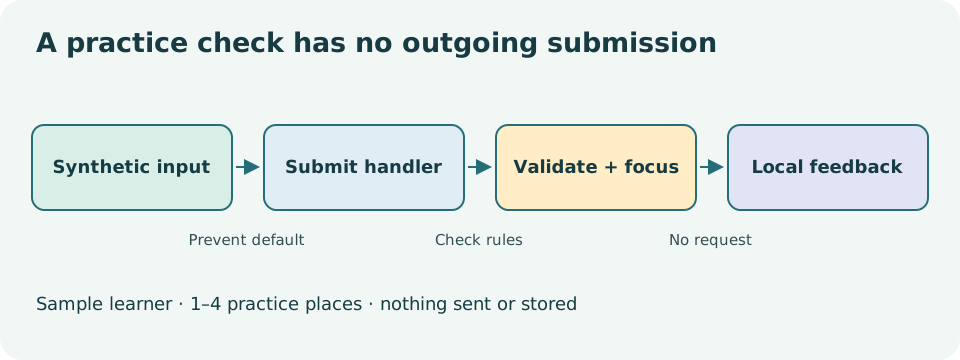
Read the diagram explanation
A local form validates fictional values, directs focus on error, and announces local confirmation on success.
Success becomes stale if the user edits the details that produced it. Clear or revise the confirmation when relevant fields change. A controlled form's reset must update React state as well as any visible status. Calling only the DOM form's reset method does not make React's state agree. Inspect checkpoint 06's reset path and test it from both an error state and a success state.
Keep rules separate from rendering
A small pure validation function can return named errors or an empty result. The component decides where to display them and where to move focus. This separation makes the rule easy to test with valid and invalid synthetic values, without making the form itself a framework within a framework.
Do not trim the visible input on every keystroke unless that behavior is intentional. It can fight the user while they type. Keep the raw field value, then normalize when checking the rule. The checkpoint has a participant field and a place-count select, with no email field. Its validation accepts only the exact synthetic participant and one of four allowed place counts. It deliberately rejects arbitrary names, even plausible ones, to keep the exercise fictional.
Test the whole journey
Open checkpoint 06. Reach every field and button with Tab and Shift+Tab. Submit empty values, correct one field, submit again, then complete the synthetic valid case. Observe focus as well as text. Change a value after success and check that an old confirmation no longer implies that the new data passed. Reset and verify all controlled values and feedback agree.
Automated DOM tests help, but they do not prove that a screen reader announces the feedback well or that a mobile keyboard is convenient. Record those as manual acceptance tasks instead of claiming them from a passing unit test.
Complete the exercises before opening the solutions. Your evidence should include the interaction order, expected message, focus destination and network expectation: no form submission request.
Primary reading: React input reference, React TypeScript events, WAI form notifications, state structure.
Read the separate answers and explanations
Reading progress
10 lessons remain open to guests. Marking a lesson read records reading only; it does not award assessment credit or a certificate.
Device reading marks require browser storage. Reading is always available.
Sign in or create an account to save separate account progress. Your current page is kept.
Your earlier place on this device suggests these lessons. No new lesson is marked read.