
HTML/CSS · Module 2
Connect pages and make media understandable
Module 02 · 90–120 minutes, provisional
Before you begin: Module 01; semantic event content.
By the end: Build meaningful navigation, follow relative paths, choose useful alternatives for images, and identify accessible media requirements.
A link is a promise about a destination
A page becomes useful when visitors can move to what they need. Our navigation will link to the events, arrival, and later form sections. The anchor element a creates a link when it has href. Its text should explain the destination: “Read garden arrival information” gives more context than “Click here.” A link changes location; a button performs an action. Their visual appearance can be similar, but their meaning and keyboard behavior differ.
<nav aria-label="Main navigation">
  <ul>
    <li><a href="#events">Events</a></li>
    <li><a href="#visit">Plan your visit</a></li>
  </ul>
</nav>
The # fragment points to an element whose id matches the characters after it. It is case-sensitive in ordinary matching: #visit should lead to id="visit". Keep the ids unique. Put this nav inside the header. aria-label gives this navigation a clear accessible name; it does not replace visible link text. Prefer the native nav element to a div with a pile of manually assigned roles.
Add a “Skip to main content” link as the first element inside body, with href="#main", and add id="main" to main. It offers a way past repeated navigation. In this course we leave it visibly available, so its purpose is easy to discover. Test it with the keyboard as well as the mouse. A useful page should not require precise pointer movements.
Build the introduction without losing the outline
Replace the h1 directly inside main with the following hero section. Keep the events and visit sections after it, inside main. The inner div groups the words; the figure groups the illustration and caption. The class names are reusable labels for future CSS: they do not change appearance by themselves. Add id="main" and class="container" to the existing main opening tag, giving <main id="main" class="container">. Do not create a second main.
<section class="hero" aria-labelledby="welcome-heading">
  <div>
    <p class="eyebrow">A fictional community project</p>
    <h1 id="welcome-heading">Good things happen when neighbors meet.</h1>
    <p>Explore friendly events, share a skill, or try something new.</p>
    <a class="button-link" href="#events">Explore the events</a>
  </div>
  <figure>
    <img src="assets/community-garden.svg" width="800" height="460"
         alt="Three raised garden beds beside a wide path and a bench.">
    <figcaption>Our illustrated garden: space to pause, plant, and talk.</figcaption>
  </figure>
</section>
aria-labelledby uses the id of visible text to name this section. The visible h1 remains the page’s main heading. Copy the image into the assets folder as described below before expecting it to load. The figure example later in this lesson explains the figure you just added; do not add it a second time.
Paths are instructions from a location
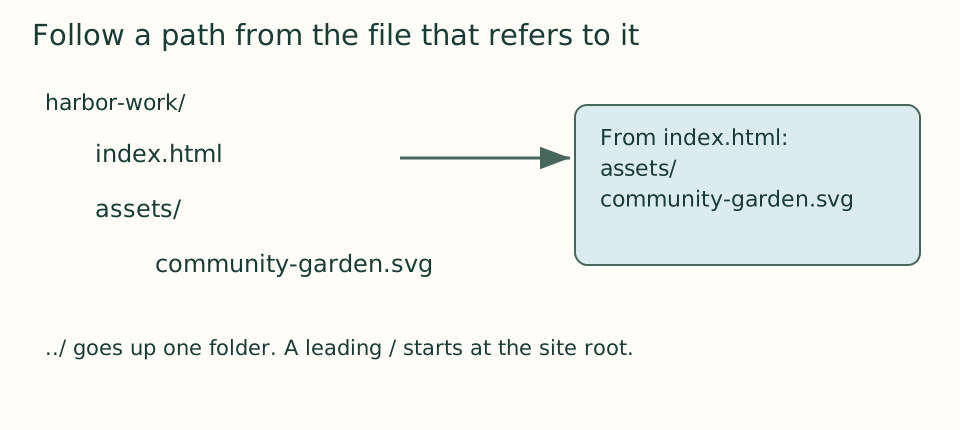
Suppose index.html and styles.css are siblings inside harbor-work and community-garden.svg is inside its assets folder. From index.html, assets/community-garden.svg means “enter assets, then find this file.” ../ means “go up one directory.” A complete https: URL names an external location. A leading / is relative to a website’s root and behaves differently from a path relative to the current file. For this portable project, use relative paths without a leading slash.
 Open the diagram at full size
Read the diagram explanation
index.html and assets are inside harbor-work. The image sits in assets, so index.html uses assets/community-garden.svg.
Copy the supplied original SVG illustration from version 02’s assets folder into an assets folder in your project. Use lowercase filenames and match spelling exactly. Many hosted systems distinguish Garden.svg from garden.svg even when your computer appears forgiving. Do not paste a path beginning with your own Documents folder: another person does not have that location.
<figure>
  <img src="assets/community-garden.svg"
       width="800" height="460"
       alt="Three raised garden beds beside a wide path and a bench.">
  <figcaption>Our illustrated garden: space to pause, plant, and talk.</figcaption>
</figure>
An image has a job, and its alternative follows that job
Our drawing conveys a garden arrangement, so the alt describes that information concisely. The caption gives visible context, rather than repeating the alt word for word. Width and height describe its intrinsic proportions and help reserve space; later CSS will let it shrink. An img is a void element: it has no closing </img> tag. Its source and text alternative are attributes.
A purely decorative flourish may use alt="" so assistive technology can ignore it. A linked image needs an accessible name that conveys the link’s purpose. A chart may need a longer nearby explanation of the data. “Image” or the filename rarely helps. Decide by asking what someone would miss if they could not see it. A picture with important embedded words needs those words available as text too. We use an original illustration to avoid licensing uncertainty; found images are not automatically free to reuse.
What changes for sound and moving pictures
Accessible media needs planning before it is published. Audio-only speech needs a text transcript; video with meaningful speech or sounds needs captions; important visual information may need audio description or a descriptive transcript depending on the media and requirements. Captions convey relevant sound as well as words. A decorative silent animation has different needs from a tutorial that demonstrates a task. Never assume “there is a video player” means the content is accessible.
The optional local audio lab contains two original gentle tones with a text alternative and native controls. Play only if useful; its text communicates the same pattern. It demonstrates source, controls, and preload without third-party embeds or autoplay. For a real event announcement, a transcript would contain the actual spoken announcement and relevant sounds, rather than the name of the file. This course does not claim to provide a captioned instructional video.
Verify the routes
Open your page and activate every navigation link. A jump to the top instead of the correct section suggests a missing or misspelled id. If the image is broken, open the relative source path directly or compare the folder and filename. Use Tab to move through links and Enter to activate one. Later CSS must preserve the browser’s visible indication of keyboard focus.
Checkpoint: compare with version 02 — download the course ZIP (Extract it and follow the included setup instructions for versions/02/index.html.). Your page now has a hero introduction with a real h1, an image, section links, and a skip link. Keep the existing h2/h3 structure. If you move the old page heading into the new hero, remove the duplicate h1.
Open the checkpoint source
The runnable-version link shows the result. To inspect or copy its source, use your editor’s Open Folder or Open File command and choose versions/02/index.html inside the extracted course folder. From module 04 onward, also open that version’s styles.css. Keep your own harbor-work folder separate. Compare a small section, then type or transfer it into the corresponding place in your own files; opening a reference does not update your project automatically.
Your next step
Attempt the three practice tasks, then use the separate explained solutions to compare reasoning. Open this module’s runnable version — download the course ZIP (Extract it and follow the included setup instructions for versions/02/index.html.). Technical references are listed in the dated source register.
Read the separate answers and explanations
Reading progress
10 lessons remain open to guests. Marking a lesson read records reading only; it does not award assessment credit or a certificate.
Device reading marks require browser storage. Reading is always available.
Sign in or create an account to save separate account progress. Your current page is kept.
Your earlier place on this device suggests these lessons. No new lesson is marked read.