
HTML/CSS · Module 5
Size boxes and make text comfortable
Module 05 · 90–120 minutes, provisional
Before you begin: Module 04; linked CSS and simple selectors.
By the end: Calculate the box model, choose flexible sizing, and style readable content and usable native controls.
Every visible part occupies space
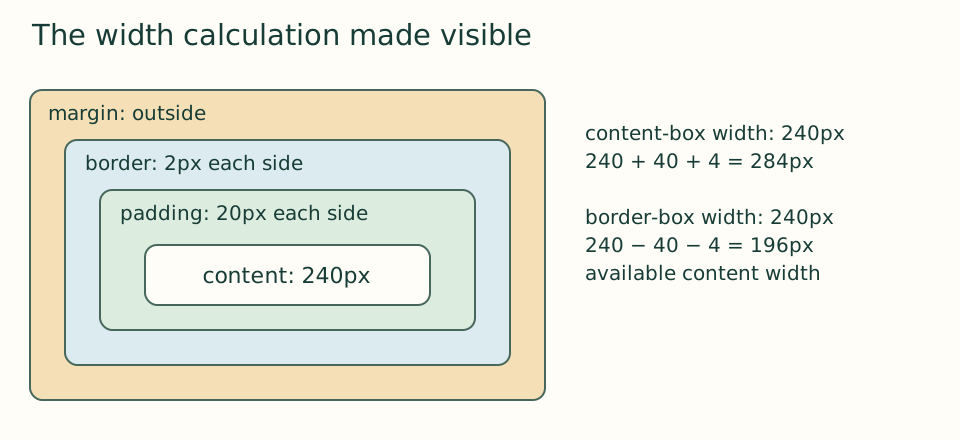
The garden card needs space around its words and separation from neighboring cards. These are different jobs. Padding is inside its border; margin is outside. The content box contains the words and children. The border surrounds content and padding. A background paints within the box; it does not fill a transparent margin. This model helps explain why a width that looks reasonable can still overflow a screen.
 Open the diagram at full size
Read the diagram explanation
Content 240 plus padding 40 plus borders 4 equals a 284 pixel border box. Margin sits outside.
With the default content-box model, width: 240px plus padding: 20px and border: 2px produces a 284px border box: 240 + 40 + 4. Margins add outside that total. With box-sizing: border-box, a declared 240px includes padding and border, leaving 196px for content. This calculation is most useful when debugging unexpectedly wide components; you do not need to calculate every card by hand during design.
*, *::before, *::after { box-sizing: border-box; }
.event-card {
  border: 1px solid #788b80;
  padding: 1.25rem;
  border-radius: 0.75rem;
}
The universal selector * matches elements; the two pseudo-element selectors extend the sizing convention to generated before/after boxes if we add them later. border-radius softens corners without changing the box’s semantic meaning. Avoid setting a fixed card height. A longer title, translated text, or enlarged font may need more vertical space, and content should be allowed to create it.
Choose units according to what should change
A CSS pixel is a reference unit, not necessarily one hardware pixel. rem is relative to the root font size; it respects changes to that size. em depends on font sizing context and can be useful for spacing that follows text. A percentage depends on the property and its containing context, so “100%” is not automatically the full screen. We use rem for text-related spacing and a maximum reading width rather than a fixed page width.
.container {
  width: min(100% - 2rem, 70rem);
  margin-inline: auto;
}
p { max-width: 65ch; }
img { max-width: 100%; height: auto; display: block; }
min chooses the smaller of two sizes. The container can use the available width minus two rem for side breathing room, but never exceed seventy rem. Auto inline margins share leftover space on the two inline sides and center it in our horizontal English layout. ch is based on the font’s zero-character advance, so 65ch is an approximate reading measure, not a promise of exactly 65 letters. Shorter lines make it easier to track a paragraph.
The image may be smaller than its natural width when space is tight, but max-width does not force it to grow larger. height: auto preserves the image’s proportions. Without it, an explicit height could squeeze or stretch the drawing. display: block removes the small baseline gap common with inline images. Each declaration answers a specific visual issue; they are not a ritual to paste without thought.
Typography is part of usability
System fonts avoid an external download and are familiar on the learner’s device. The fallback sans-serif gives the browser a broad alternative. A unitless line-height such as 1.6 scales with the element’s own font size. Headings benefit from tighter line spacing, but body text needs enough room to follow. Avoid fully justified text, tiny footnotes for essential facts, and long paragraphs in all capitals.
Contrast is the difference in lightness between text and its background. WCAG 2.2’s minimum for ordinary text is 4.5:1; qualifying large text can use 3:1. Those thresholds do not make every design comfortable, and they are not a complete accessibility checklist. Our palette was chosen for strong contrast, but if you change it, measure the actual foreground/background pairs. Keep links underlined or otherwise distinguished beyond color alone.
Style controls without removing their behavior
Give form controls font: inherit, sufficient padding, a visible border, and a flexible width. Keep labels visible above them and hints close by. The native select still behaves like a select; we are not recreating it. Textarea resize: vertical lets a person enlarge a long response without dragging the whole page wider. A fieldset’s default minimum sizing can cause narrow layouts to overflow, so min-width: 0 allows it to shrink.
input, select, textarea {
  width: 100%;
  max-width: 35rem;
  font: inherit;
  padding: 0.6rem;
  border: 2px solid #788b80;
}
fieldset { min-width: 0; }
textarea { resize: vertical; }
Observe normal flow before changing layout
Block-level sections usually stack vertically in normal flow, while inline text flows within a line. Normal flow already responds to the available width. Vertical margins between some block boxes can collapse rather than add, which explains an occasional spacing surprise. We will use gap inside flex and grid containers when we want explicit spacing between layout items. Do not use repeated br tags or many spaces as layout tools.
Checkpoint: apply the sizing and typography portion of version 05 — download the course ZIP (Extract it and follow the included setup instructions for versions/05/index.html.). Shrink the browser window and check the image, fieldset, and cards. The page remains one column at this point. That is a deliberate, readable baseline.
Open the checkpoint source
The runnable-version link shows the result. To inspect or copy its source, use your editor’s Open Folder or Open File command and choose versions/05/index.html inside the extracted course folder. From module 04 onward, also open that version’s styles.css. Keep your own harbor-work folder separate. Compare a small section, then type or transfer it into the corresponding place in your own files; opening a reference does not update your project automatically.
Your next step
Attempt the three practice tasks, then use the separate explained solutions to compare reasoning. Open this module’s runnable version — download the course ZIP (Extract it and follow the included setup instructions for versions/05/index.html.). Technical references are listed in the dated source register.
Read the separate answers and explanations
Reading progress
10 lessons remain open to guests. Marking a lesson read records reading only; it does not award assessment credit or a certificate.
Device reading marks require browser storage. Reading is always available.
Sign in or create an account to save separate account progress. Your current page is kept.
Your earlier place on this device suggests these lessons. No new lesson is marked read.