
HTML/CSS · Module 3
Build a form people can understand
Module 03 · 90–120 minutes, provisional
Before you begin: Module 02; ids, links, and a structured page.
By the end: Associate visible labels and hints, use native controls and validation, and explain what a static practice form does and does not send.
Begin with the visitor’s uncertainty
A form asks a person to invest effort and sometimes reveal information. Before adding controls, decide what is needed and why. Our site has no registration service and no real event organizer. We will build a clearly labeled practice form that uses invented details only. It will check required fields and email format in the browser, then navigate to a local explanation page. It will not reserve a place, send an email, or save a response.
A working-looking form that quietly does nothing is misleading. We therefore describe its limits next to the controls and use the button text “Check practice fields.” Real collection would need an appropriate receiving service, privacy decisions, secure handling, and server-side validation. Those are beyond this static-site course.
Give each control a visible name
<label for="visitor-email">Invented email (required)</label>
<input id="visitor-email" type="email" required
       autocomplete="off" aria-describedby="email-hint">
<p id="email-hint">Use alex@example.com. This checks format, not whether an inbox exists.</p>
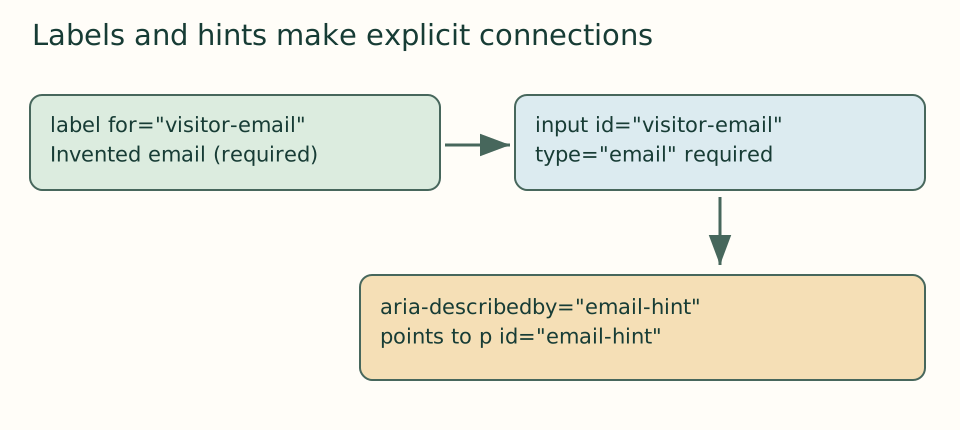
The label’s for matches the input’s id, connecting the visible prompt to the control. Clicking the label should focus the input. A placeholder disappears while typing and is not a replacement for a label. required is a boolean attribute: its presence requests a value; writing required="false" still makes it required. The email type requests an email-shaped value. It cannot prove that an address exists or belongs to a person.
The hint has its own id, and aria-describedby connects it as extra description. An accessible name tells the user what a control is; a description adds help. Do not hide required instructions in color alone or in a tooltip. For a real contact form, suitable autocomplete tokens can help people fill it in. We use off here to discourage real details in the demo, but browsers may still offer autofill; do not treat it as a privacy guarantee.
 Open the diagram at full size
Read the diagram explanation
The label for value matches the input id. The input description points to the hint id.
Choose a control that matches the question
A short invented name uses type="text". A category with a small fixed set of choices uses select and option. A longer optional question uses textarea, whose rows suggests an initial height. The default option text should make sense. A fieldset with a legend groups the practice details so a visitor can understand the set. For a yes/no choice, a checkbox is often suitable; for one choice among a short set, radio buttons usually share a name. We avoid adding those until there is a genuine question that needs them.
A button inside a form can submit by default, so write type explicitly. type="submit" requests submission after validation; type="button" has no built-in submission action. Do not add a reset button casually: it can erase someone’s work when they meant to submit. Native controls already provide substantial keyboard behavior, so there is little reason to imitate a select with clickable divs.
Separate identity from submitted data
An id identifies a document element; a name identifies a value in submitted form data. These are separate purposes. A real input with name="email" could contribute a key called email and its typed value. Our practice controls intentionally have no name attributes. They can still have labels, focus, and validation, but their values are not included in the form’s submitted entry list. The provided local result page therefore receives no field values.
<form action="practice-result.html" method="get">
  <label for="visitor-name">Invented name (required)</label>
  <input id="visitor-name" type="text" required>
  <label for="visitor-email">Invented email (required)</label>
  <input id="visitor-email" type="email" required>
  <button type="submit">Check practice fields</button>
</form>
action gives the destination and get requests navigation with successful named values normally encoded into the URL. That makes GET unsuitable for secrets. POST normally sends form data in the request body, but does not magically secure it or make a static hosting service process it. Transport security and server behavior are separate concerns. In this demo there are no named controls and no receiving service. Do not add names or point action to a remote service as an experiment with real details.
Build and test the complete practice
Copy practice-result.html from version 03 into your working folder; it is a plain page explaining the result and linking back. Add the complete form section from version 03 — download the course ZIP (Extract it and follow the included setup instructions for versions/03/index.html.), reading each association rather than pasting without inspection. Add the form link to navigation. Leave the warning visible. Submit with both required fields empty: the browser should stop navigation and identify an invalid control. Try Alex Example and an invalid email, then alex@example.com. Wording and visual feedback vary across browsers.
With valid invented values, you should reach the local practice-result page. Check the address: it must not contain the typed name, email, category, or question. A trailing empty question mark is harmless. Native validation is a useful convenience, not security; someone can bypass browser rules. For a real service, the server must validate every request independently and return understandable errors without losing useful input.
Checkpoint: use only the keyboard to enter the invented values, change the select, reach the button, and submit. Explain why the result is a format check rather than a booking confirmation.
Open the checkpoint source
The runnable-version link shows the result. To inspect or copy its source, use your editor’s Open Folder or Open File command and choose versions/03/index.html inside the extracted course folder. From module 04 onward, also open that version’s styles.css. Keep your own harbor-work folder separate. Compare a small section, then type or transfer it into the corresponding place in your own files; opening a reference does not update your project automatically.
Your next step
Attempt the three practice tasks, then use the separate explained solutions to compare reasoning. Open this module’s runnable version — download the course ZIP (Extract it and follow the included setup instructions for versions/03/index.html.). Technical references are listed in the dated source register.
Read the separate answers and explanations
Reading progress
10 lessons remain open to guests. Marking a lesson read records reading only; it does not award assessment credit or a certificate.
Device reading marks require browser storage. Reading is always available.
Sign in or create an account to save separate account progress. Your current page is kept.
Your earlier place on this device suggests these lessons. No new lesson is marked read.