
HTML/CSS · Module 8
Adapt the page without losing access
Module 08 · 90–120 minutes, provisional
Before you begin: Module 07; one-column Grid and a wrapping Flexbox header.
By the end: Choose a content-based breakpoint, test reflow and keyboard use, and preserve visible focus and meaningful order.
Let the content tell you when to change
Responsive design means the page adapts to the space and preferences available to it. It is not a separate “mobile site.” We already have flexible images, a bounded container, wrapping navigation, and a one-column layout. Those choices do most of the work. A media query can now add columns when they will help rather than squeeze the text.
Make the browser window slowly wider. At some point three event cards can sit side by side with comfortable line lengths. Our reference uses 48rem as a starting breakpoint. That number is a design decision for this content, not the definition of a tablet. Longer translations, different fonts, or more detailed cards may call for a different point. Test widths between named device presets too.
@media (min-width: 48rem) {
  .event-grid { grid-template-columns: repeat(3, minmax(0, 1fr)); }
  .hero { grid-template-columns: 1.1fr 1fr; }
}
The rule inside applies only when the media condition is true. Below that width, the earlier single-column rule remains in force. This is a mobile-first pattern: a simple narrow layout is the default, and wider space receives an enhancement. The query does not detect the person’s device or abilities. A small browser window on a large desktop can use the narrow layout.
 Open the diagram at full size
Read the diagram explanation
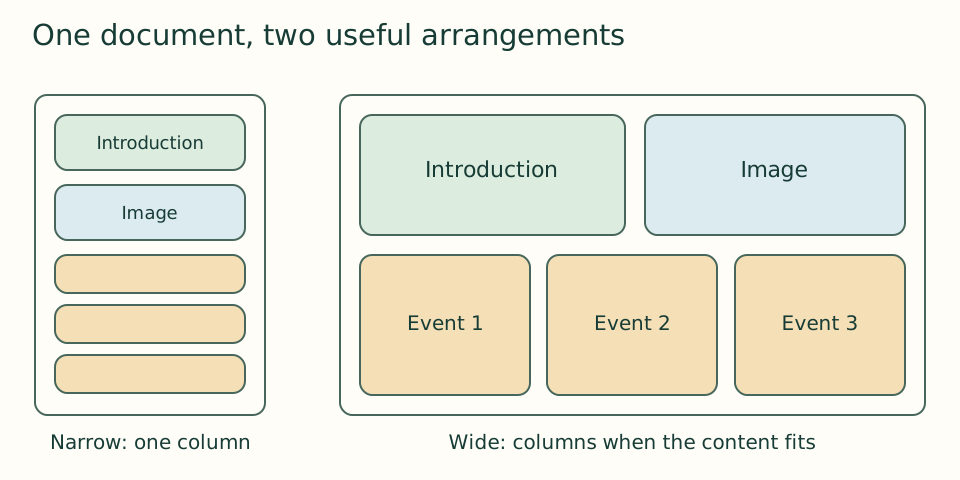
Narrow layout stacks text, image, and cards. Wide layout places text beside image and cards in three columns without changing source order.
Reflow is a reading requirement
A visitor may magnify a page, use a narrow device, or increase default text size. Important content must remain reachable. For ordinary vertical reading content, WCAG’s reflow criterion uses a width equivalent to 320 CSS pixels, with exceptions for content that genuinely needs two-dimensional layout. Our event cards are ordinary text, so sideways page scrolling is not a reasonable requirement. A viewport preview is useful evidence, but it does not replace testing actual zoom and actual devices.
Open the page at a narrow width and inspect the whole document, not just the first screen. Check long titles, the figure caption, the select, and the button. A long unbroken word or URL can push a track wider than expected. Our reference uses min-width: 0 and overflow-wrap: anywhere on the card and hero children so unusually long content can wrap instead of forcing the page wider. Use these fixes where the content needs them, and verify readability.
Now use the browser’s zoom control to try 200%, and if your screen permits, 400%. Scroll down through every section. No text should disappear behind a fixed height or an overlay. Try a larger default font size separately if your browser supports it. These are related but different tests. Fixed viewport-based font sizes can respond poorly to zoom; our reference heading uses rem and allows wrapping. Even a sensible unit choice still needs observation.
Focus is the keyboard user’s location marker
Use Tab and Shift+Tab to move between links and controls. Enter activates a link; native buttons and selects offer their own keyboard conventions. The currently focused item needs a visible indicator. Do not remove outline without a clear replacement. We add :focus-visible so keyboard navigation can show a contrasting outline while letting the browser decide when that state is appropriate.
:focus-visible {
  outline: 3px solid #963e06;
  outline-offset: 4px;
}
The outline sits outside the box and does not consume layout space like a border. Check that it is not clipped by an ancestor with hidden overflow. It must be visible on the actual background. A lovely focus color that vanishes over the button is not useful. Starting at the top, activate the skip link and verify that you reach main content. Continue through the form, including the select and submit button, and use the browser’s back navigation to return from the local result.
Native disclosure and sensible simplification
The arrival section includes details with a summary. It is a native disclosure: activating the summary reveals its contents without JavaScript. It is suitable for the optional break-area explanation, but essential time and location information should remain directly visible. A disclosure is not a replacement for a full navigation menu and should not hide a critical warning.
Our print media query removes navigation and the practice form, uses a simple single-column flow, and asks event cards to avoid breaking across pages where practical. Print preview is a separate format to test. The break-inside hint is not an absolute guarantee; the browser must still fit content on paper. Avoid promising that a print stylesheet behaves identically in every browser.
Add this disclosure after the arrival list, inside the visit section. If you already copied it from a reference, keep only one copy.
<details>
  <summary>What if I need a break?</summary>
  <p>You can leave an activity and return. The quiet seating area is beside the community room.</p>
</details>
Make an evidence-based check
Record the browser and viewport or zoom used, the behavior you observed, and any fixes. “Accessible” is not a box one person checks after pressing Tab. Keyboard, semantics, contrast, text alternatives, reflow, assistive-technology use, and real users all contribute evidence. Automated checks can find some problems but cannot determine whether an alternative text is meaningful or instructions make sense.
Checkpoint: compare with version 08 — download the course ZIP (Extract it and follow the included setup instructions for versions/08/index.html.). Complete the keyboard and resize tasks before moving to the debugging lesson. If your design fails at a particular size, preserve that size while diagnosing it instead of widening the window until the problem disappears.
Open the checkpoint source
The runnable-version link shows the result. To inspect or copy its source, use your editor’s Open Folder or Open File command and choose versions/08/index.html inside the extracted course folder. From module 04 onward, also open that version’s styles.css. Keep your own harbor-work folder separate. Compare a small section, then type or transfer it into the corresponding place in your own files; opening a reference does not update your project automatically.
Your next step
Attempt the three practice tasks, then use the separate explained solutions to compare reasoning. Open this module’s runnable version — download the course ZIP (Extract it and follow the included setup instructions for versions/08/index.html.). Technical references are listed in the dated source register.
Read the separate answers and explanations
Reading progress
10 lessons remain open to guests. Marking a lesson read records reading only; it does not award assessment credit or a certificate.
Device reading marks require browser storage. Reading is always available.
Sign in or create an account to save separate account progress. Your current page is kept.
Your earlier place on this device suggests these lessons. No new lesson is marked read.