
HTML/CSS · Module 4
Explain how CSS chooses a style
Module 04 · 90–120 minutes, provisional
Before you begin: Module 03; HTML classes and ids can be recognized.
By the end: Attach a stylesheet, write selectors and declarations, and diagnose simple cascade and inheritance conflicts.
Keep meaning and presentation connected but separate
Our page already works as a document. CSS now lets us make its structure easier to perceive. Open your working folder and create styles.css beside index.html. Add <link rel="stylesheet" href="styles.css"> inside head. This link element does not create a visible hyperlink; it tells the browser where the stylesheet lives. Save both files, refresh, and check one deliberate change before writing a whole design.
body {
  color: #173c35;
  background: #fffdf7;
  font-family: system-ui, sans-serif;
  line-height: 1.6;
}
a { color: #17564d; }
A rule combines a selector with declarations inside braces. body selects the body element. Each declaration names a property, a colon, a value, and a semicolon. color affects foreground text; background fills the background. A hexadecimal color uses three pairs of digits to describe red, green, and blue. You can use a color picker while checking contrast; memorizing the digits is not the goal. A missing brace can change how the browser reads subsequent rules, so keep each rule small and neatly formatted.
Select a role, not a screenshot position
An element selector such as p matches paragraphs. A class selector such as .event-card matches elements with class="event-card". It can match every event card. An id selector such as #events matches the element with that unique identifier. Prefer reusable classes for presentation and ids for destinations or unique relationships. This keeps a future fourth event from needing a brand-new rule.
/* Same class, several events. */
.event-card { background: white; }
.event-card h3 { color: #205848; }
a:hover { text-decoration-thickness: 0.18em; }
The space in .event-card h3 means an h3 anywhere inside an event-card ancestor. The pseudo-class :hover selects a state, when a pointing device is hovering. Hover cannot be the only way to discover important information because touch and keyboard users may not use that state. We keep links underlined and later add a strong focus style. A comma separates selectors that share declarations; it does not mean one is inside the other.
Add the class hooks your later CSS will select
Before writing layout rules, make these concrete HTML edits. A hook here means an element name or class a selector can match. Copying a CSS rule does nothing if its target class is missing. Open versions/04/index.html in your editor, not just in the browser, to compare opening and closing tags when you are unsure.
- Change the outer header to <header class="site-header">. Inside it, put a div with class="container header-row" around the brand paragraph and the nav. Close that div immediately before </header>. Give the brand paragraph class="brand" and the navigation ul class="nav-list".
- Your main should already be <main id="main" class="container"> from module 02. The hero section should already have class="hero", its introduction line class="eyebrow", and its event link class="button-link".
- Inside the events section, keep the h2 and introduction paragraph first. Insert <div class="event-grid"> immediately before the first article, and </div> immediately after the last article. All three articles go inside this wrapper. Give each article class="event-card" while preserving its unique id.
- Give the visit section class="visit-panel" while preserving id="visit". Give the footer class="site-footer" and wrap its contents in <div class="container">.
- For the form, wrap each label, control, and associated hint in its own <div class="field">. Keep those wrappers inside fieldset. Give the email hint class="hint" while preserving id="email-hint". These wrappers group each question for spacing without changing its label relationship.
<!-- The header's new wrapper: -->
<header class="site-header">
  <div class="container header-row">
    <p class="brand">Harbor Together</p>
    <nav aria-label="Main navigation">
      <ul class="nav-list">
        <li><a href="#events">Events</a></li>
        <li><a href="#visit">Plan your visit</a></li>
        <li><a href="#interest">Practice form</a></li>
      </ul>
    </nav>
  </div>
</header>
These class names form a small shared vocabulary. container controls page width, header-row and nav-list will become flex containers, event-grid will become a grid container, and event-card styles repeated articles. Reload now: the document should still read in the same order. The next modules add presentation to these existing targets.
Follow the cascade one property at a time
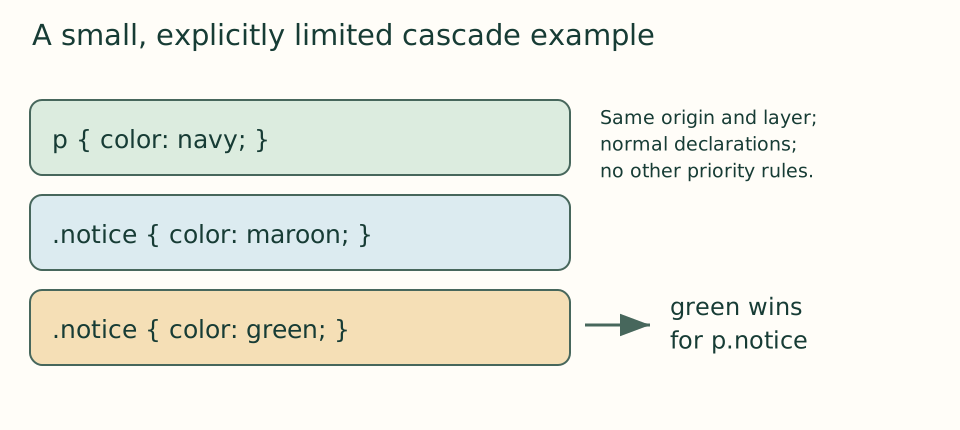
Suppose the same paragraph matches p { color: navy; } and .notice { color: maroon; }. Within this course’s ordinary author stylesheet, with no layers, important declarations, inline styles, animations, or scoped rules, the class selector has higher specificity, so maroon wins. If two rules use .notice with different colors, the later one wins because their specificity ties. This is a deliberately limited model of the full cascade: browser and user styles, importance, layers, and other mechanisms also affect priority. “The last rule always wins” is therefore not a reliable general rule.
p { color: navy; }
.notice { color: maroon; }
.notice { color: #205848; }
For a p with class="notice", the last rule supplies the color. For a p without that class, the first rule supplies it. The browser decides separately for each property: the winning color rule does not erase a font-size declaration from another matching rule. Avoid adding !important as a first repair. It changes the priority and can make future edits harder; understanding the matching rules usually yields a cleaner solution.
 Open the diagram at full size
Read the diagram explanation
For p.notice in ordinary same-layer author CSS: the class selector beats p; of two class rules the later wins. The final color is green.
Inheritance explains repeated text styles
We set font-family and line-height on body, yet paragraphs and headings use them. These properties normally inherit from a parent when the child has no overriding value. Borders and margins do not generally inherit that way. Inheritance is not the same contest as specificity: a declaration directly targeting a child can replace an inherited value even when the parent was selected with a powerful selector. If an input uses an unexpected font, font: inherit asks it to take the surrounding font properties.
Our reference uses custom properties as named reusable values. :root selects the document’s root element. Defining --ink there and using color: var(--ink) lets us change a repeated choice in one place. The double hyphen is part of the custom property’s name. A custom property is not an ordinary property called “ink”; it holds a value for later use. Start with just a few colors rather than building a large design system before you have a page.
:root { --ink: #173c35; --paper: #fffdf7; }
body { color: var(--ink); background: var(--paper); }
Try a conflict you can explain
Temporarily give the first event paragraph class="notice" and add the three conflict rules above. Predict the final color before refreshing. Open your browser’s developer tools with Inspect on that paragraph and find its Styles or Rules panel. Matched declarations that lose are commonly crossed out. Read what selector supplied the winning color, then remove the experiment. Developer tools are a way to gather evidence, not a separate copy of the project: temporary changes there normally disappear on reload unless saved back to your source.
Checkpoint: compare with version 04 — download the course ZIP (Extract it and follow the included setup instructions for versions/04/index.html.). It adds the linked stylesheet, shared colors, font, line height, and heading/link treatment. Large image sizing and spacing are intentionally unfinished. If nothing is styled, check the stylesheet path before rewriting every selector.
Open the checkpoint source
The runnable-version link shows the result. To inspect or copy its source, use your editor’s Open Folder or Open File command and choose versions/04/index.html inside the extracted course folder. From module 04 onward, also open that version’s styles.css. Keep your own harbor-work folder separate. Compare a small section, then type or transfer it into the corresponding place in your own files; opening a reference does not update your project automatically.
Your next step
Attempt the three practice tasks, then use the separate explained solutions to compare reasoning. Open this module’s runnable version — download the course ZIP (Extract it and follow the included setup instructions for versions/04/index.html.). Technical references are listed in the dated source register.
Read the separate answers and explanations
Reading progress
10 lessons remain open to guests. Marking a lesson read records reading only; it does not award assessment credit or a certificate.
Device reading marks require browser storage. Reading is always available.
Sign in or create an account to save separate account progress. Your current page is kept.
Your earlier place on this device suggests these lessons. No new lesson is marked read.